GB WhatsApp Privacy Guide | Best Security Settings in 2026
GB WhatsApp Privacy Guide | Best Security Settings in 2026
GB WhatsApp gives you more control over your messaging experience than the official WhatsApp ever has. But having more features also means having more responsibility. If you are not using the right settings, you are leaving your account and your personal conversations exposed.
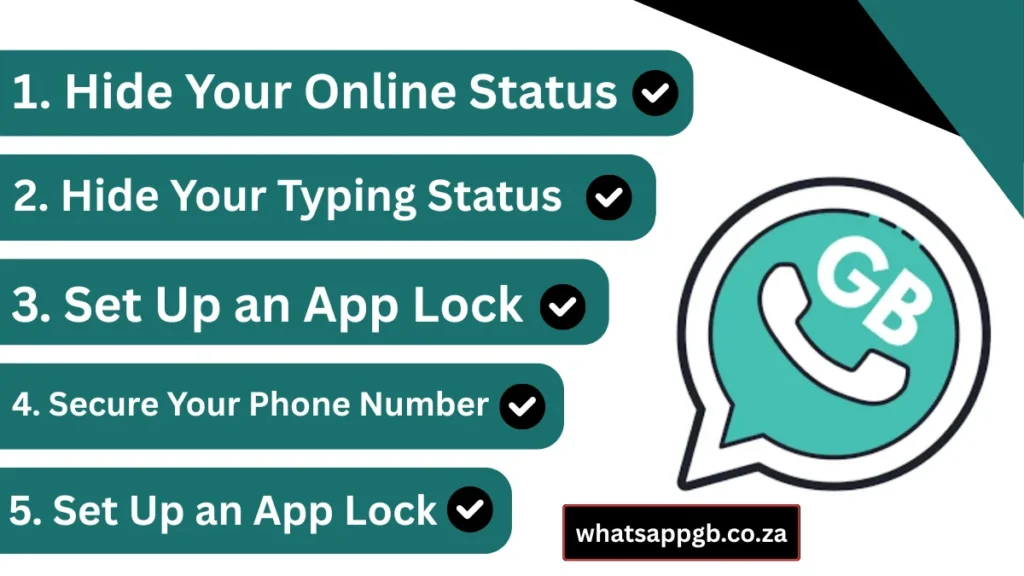
This guide covers every important security setting and privacy tip available in GB WhatsApp. Follow these steps and you will have one of the most secure and private messaging setups possible.
Why Security Matters in GB WhatsApp
GB WhatsApp is a modified app. It operates outside the official WhatsApp ecosystem. This means you need to be more careful about how you manage your account, your data, and your privacy settings. The good news is that GB WhatsApp comes with privacy and security tools that go far beyond what the official app offers. You just need to know where they are and how to use them.
1. Set Up an App Lock
The first and most basic security step is locking GB WhatsApp itself. If someone picks up your phone, they should not be able to open your messages without your permission.
GB WhatsApp has a built-in app lock feature. To enable it, open GB WhatsApp and go to the three-dot menu in the top right corner. Select GB Settings, then Privacy and Security. You will find the App Lock option there. Enable it and choose your preferred lock method. You can set it to use your fingerprint, a PIN, or a pattern lock depending on what your device supports.
Once enabled, GB WhatsApp will ask for authentication every time you open the app or every time you switch away from it and come back. This is your first line of defence against anyone accessing your messages without permission.
2. Enable Two-Step Verification
Two-step verification adds an extra layer of security to your WhatsApp account. Even if someone gets access to your phone number, they cannot activate your account on another device without your six-digit PIN.
To enable it, go to GB WhatsApp Settings, then Account, then Two-Step Verification. Tap Enable and create a six-digit PIN you will remember. You will also be asked to add an email address as a backup in case you forget your PIN. Do not skip this step. The email backup can save your account if you ever get locked out.
Two-step verification is one of the most important security settings available and it takes less than two minutes to set up.
3. Control Who Sees Your Last Seen
Your Last Seen timestamp tells other users the last time you were active on GB WhatsApp. Sharing this information with everyone is not always desirable. GB WhatsApp gives you more control over this setting than the official app.
Go to GB WhatsApp Settings, then Account, then Privacy. Tap Last Seen and choose from Everyone, My Contacts, My Contacts Except, or Nobody. The My Contacts Except option is unique to GB WhatsApp and lets you hide your Last Seen from specific people without hiding it from everyone else. This level of control is not available in the official WhatsApp.
4. Hide Your Online Status
Hiding your Last Seen is different from hiding your online status. Even with Last Seen turned off, people can still see when you are currently active if they open your chat while you are using the app. GB WhatsApp lets you hide this too.
In GB Privacy settings, look for the Hide Online Status option. Enable it and your contacts will not be able to see when you are currently online, even while you are actively using the app. This is one of the most popular privacy features in GB WhatsApp and one that the official app has never offered.
5. Disable Blue Ticks Selectively
Blue ticks let the sender know when you have read their message. Sometimes you want to read a message without the sender knowing. GB WhatsApp gives you full control over this.
Go to GB Settings, then Privacy. You will find options to disable Read Receipts entirely or to control them on a per-contact basis. You can turn off blue ticks for specific people while keeping them on for others. This selective control is far more useful than the all-or-nothing setting in the official WhatsApp.
You can also disable the second tick entirely if you prefer senders not to know whether their message has even been delivered.
6. Hide Your Typing Status
When you are typing a reply, WhatsApp shows the other person a typing indicator. If you want to compose your message without the other person knowing, GB WhatsApp lets you hide this.
In GB Privacy settings, find the Hide Typing option and enable it. Your contacts will no longer see the typing indicator when you are writing a message. This small feature makes a surprisingly big difference to how privately you can communicate.
7. Disable Recording Indicator
Similar to the typing indicator, WhatsApp shows a recording indicator when you are recording a voice message. GB WhatsApp allows you to disable this as well.
In the same GB Privacy settings menu, look for the Hide Recording Status option and turn it on. Nobody will know you are recording a voice note until you actually send it.
8. Control Who Can See Your Profile Photo
Your profile photo is visible to everyone by default. GB WhatsApp gives you detailed control over who can see it.
Go to Settings, then Account, then Privacy, then Profile Photo. Choose from Everyone, My Contacts, My Contacts Except, or Nobody. If you use GB WhatsApp for both personal and professional communication, restricting your profile photo to your contacts only is a sensible choice.
9. Control Who Can See Your About Section
Your About section, the short bio visible on your profile, can also be restricted. Go to Settings, then Account, then Privacy, then About. Set it to My Contacts or Nobody if you prefer to keep this information private.
This is a small setting but part of a complete privacy setup. Every piece of information you limit adds another layer of protection to your overall profile.
10. Use the Anti-Revoke Feature Carefully
GB WhatsApp has an anti-revoke feature that prevents messages from disappearing even after the sender deletes them. When someone sends you a message and then deletes it for everyone, GB WhatsApp shows it to you anyway.
This feature is powerful but it works both ways in terms of awareness. Go to GB Settings and look for the Anti-Revoke Messages option. You can enable it for individual chats or globally. Be aware that while you can see deleted messages, the sender has no way of knowing you can see them unless you respond to the content.
11. Enable Chat Backup Encryption
Your chat backup contains every message, photo, and file you have exchanged. If this backup is not secured, anyone with access to your cloud storage could potentially read your conversations.
In GB WhatsApp Settings, go to Chats, then Chat Backup. Enable encrypted backup and set a strong password. Store this password somewhere safe because there is no recovery option if you forget it. An encrypted backup means your chat history is protected even if your cloud account is compromised.
12. Use Fingerprint Lock for Individual Chats
Beyond locking the entire app, GB WhatsApp allows you to lock individual conversations. This is useful if you share your phone with someone and want to keep specific chats private without restricting access to the whole app.
Open the chat you want to lock. Tap the contact name at the top to open the contact info screen. Scroll down and look for the Fingerprint Lock option. Enable it for that specific conversation. The chat will now require fingerprint authentication to open, even when the app itself is already unlocked.
13. Manage Your Blocked Contacts List
Keeping your blocked contacts list up to date is a simple but often overlooked security practice. Blocked contacts cannot see your Last Seen, profile photo, or status updates. They cannot send you messages or call you.
Go to Settings, then Account, then Privacy, then Blocked Contacts. Review the list regularly and make sure it reflects your current preferences. If you have previously blocked someone and your situation has changed, this is where you manage those decisions.
14. Be Careful With GB WhatsApp Downloads
One of the most important security practices for GB WhatsApp users is downloading the app only from trusted sources. Modified apps downloaded from unknown websites can contain malware, spyware, or compromised code that puts your device and your data at risk.
Always download GB WhatsApp from whatsappgb.co.za. Every APK available on this website is verified, tested, and safe to install. Never download GB WhatsApp from random websites, Telegram channels, or links shared in group chats. The risk of getting a tampered file from an untrusted source is real and the consequences can be serious.
15. Keep GB WhatsApp Updated
Running an outdated version of GB WhatsApp is a security risk. Older versions may have vulnerabilities that have been fixed in newer releases. They may also have compatibility issues that cause instability or unexpected behaviour.
Check whatsappgb.co.za regularly for the latest version. When a new APK is available, download it and install it over your existing version. Your data and settings will be preserved during the update. Staying on the latest version keeps you on the most secure and stable build available.
16. Be Aware of What Permissions You Grant
When you install GB WhatsApp, it requests permissions to access your camera, microphone, contacts, storage, and location. Review these permissions carefully. Only grant what is necessary for the app to function.
On Android, you can manage app permissions by going to your phone Settings, then Apps, then GB WhatsApp, then Permissions. Disable any permissions that you are not comfortable with. Location access in particular should only be enabled when you specifically want to share your location in a conversation.
17. Use Disappearing Messages
GB WhatsApp supports disappearing messages, which automatically delete after a set period of time. This is a useful feature for sensitive conversations that you do not want stored permanently.
To enable disappearing messages in a chat, open the conversation and tap the contact name at the top. Find the Disappearing Messages option and set your preferred timer. You can choose from 24 hours, 7 days, or 90 days. Once enabled, all messages in that conversation will automatically delete after the chosen period.
18. Secure Your Phone Number
Your phone number is the key to your GB WhatsApp account. Protecting it is as important as protecting the app itself. Enable your mobile carrier’s SIM lock feature to prevent SIM swapping attacks where someone transfers your number to a new SIM card without your knowledge.
Also be careful about sharing your phone number publicly on social media or in public group chats. The more people who have your number, the wider your exposure to unwanted contact and potential security risks.
Summary of Key Security Settings
Here is a quick checklist of everything covered in this guide:
Enable App Lock using fingerprint or PIN. Turn on Two-Step Verification with a strong PIN and backup email. Set Last Seen to My Contacts or Nobody. Enable Hide Online Status. Disable Blue Ticks selectively or globally. Turn on Hide Typing and Hide Recording Status. Restrict your Profile Photo and About section visibility. Enable encrypted Chat Backup with a strong password. Lock sensitive individual chats with Fingerprint Lock. Keep your Blocked Contacts list updated. Download GB WhatsApp only from whatsappgb.co.za. Keep the app updated to the latest version. Review and limit app permissions regularly. Use Disappearing Messages for sensitive conversations. Protect your phone number with your carrier’s SIM lock.
Final Thoughts
GB WhatsApp gives you more privacy and security tools than any official messaging app. But those tools only protect you if you use them. Take twenty minutes today to go through every setting in this guide and configure your account properly.
A well-secured GB WhatsApp setup means your conversations stay private, your account stays protected, and your personal information stays yours.
For the latest GB WhatsApp APK downloads and security updates, visit whatsappgb.co.za.